
Your containers, finally at home on the Mac.
Apple built a fast, lightweight container runtime into macOS. Container Desktop gives it the app it deserves: launch whole Compose stacks, read every service's logs in one place, and switch from Docker in a single click. Your data comes with you.
You could type that. Or you could just click Run.
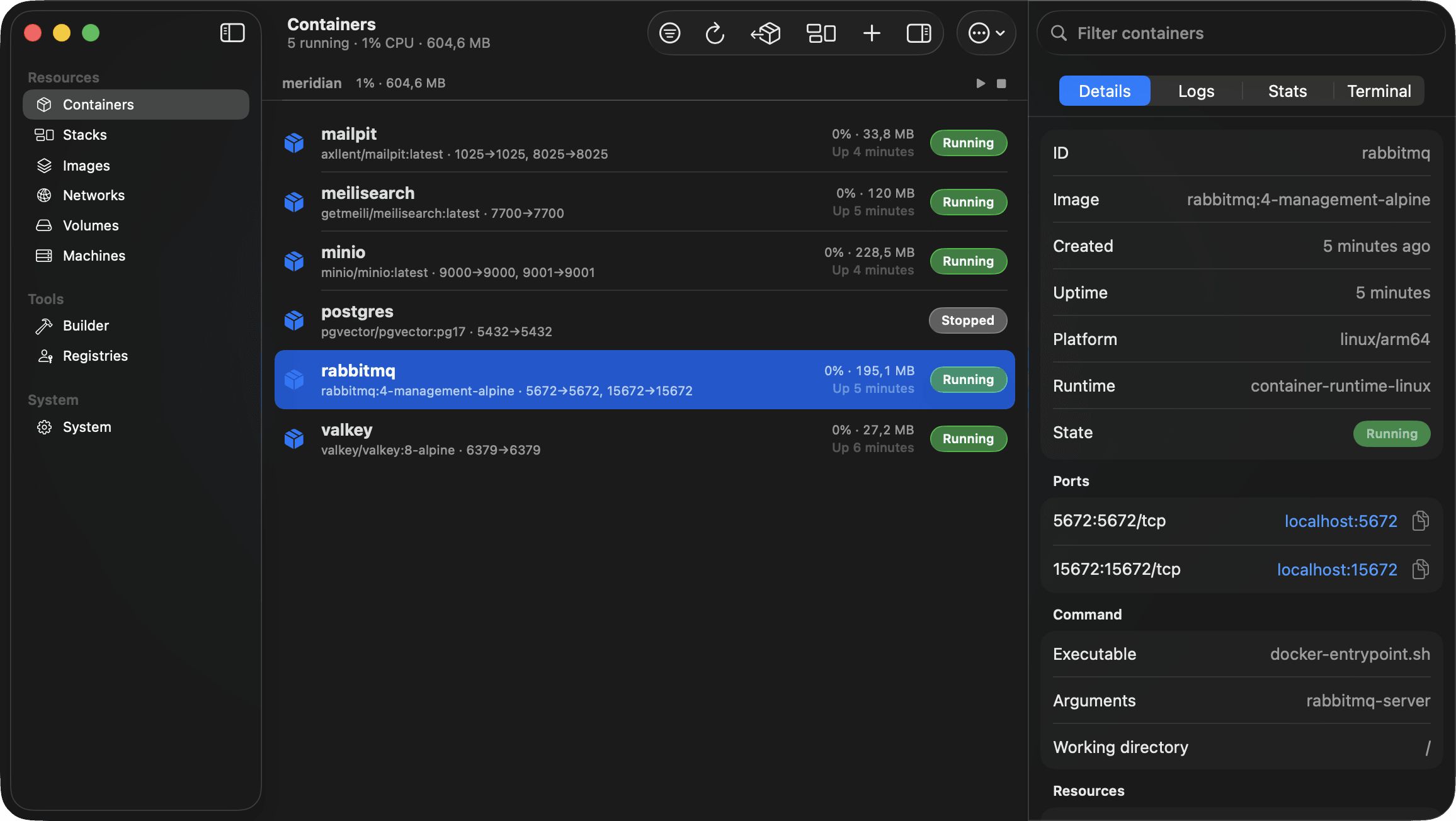
A better way to run containers on the Mac.
The everyday essentials, done natively. Plus a few things no wrapper can do.
Leave Docker in an afternoon
One click moves your containers over: images, settings, and the data in your volumes. The originals stay in Docker, stopped but never deleted.
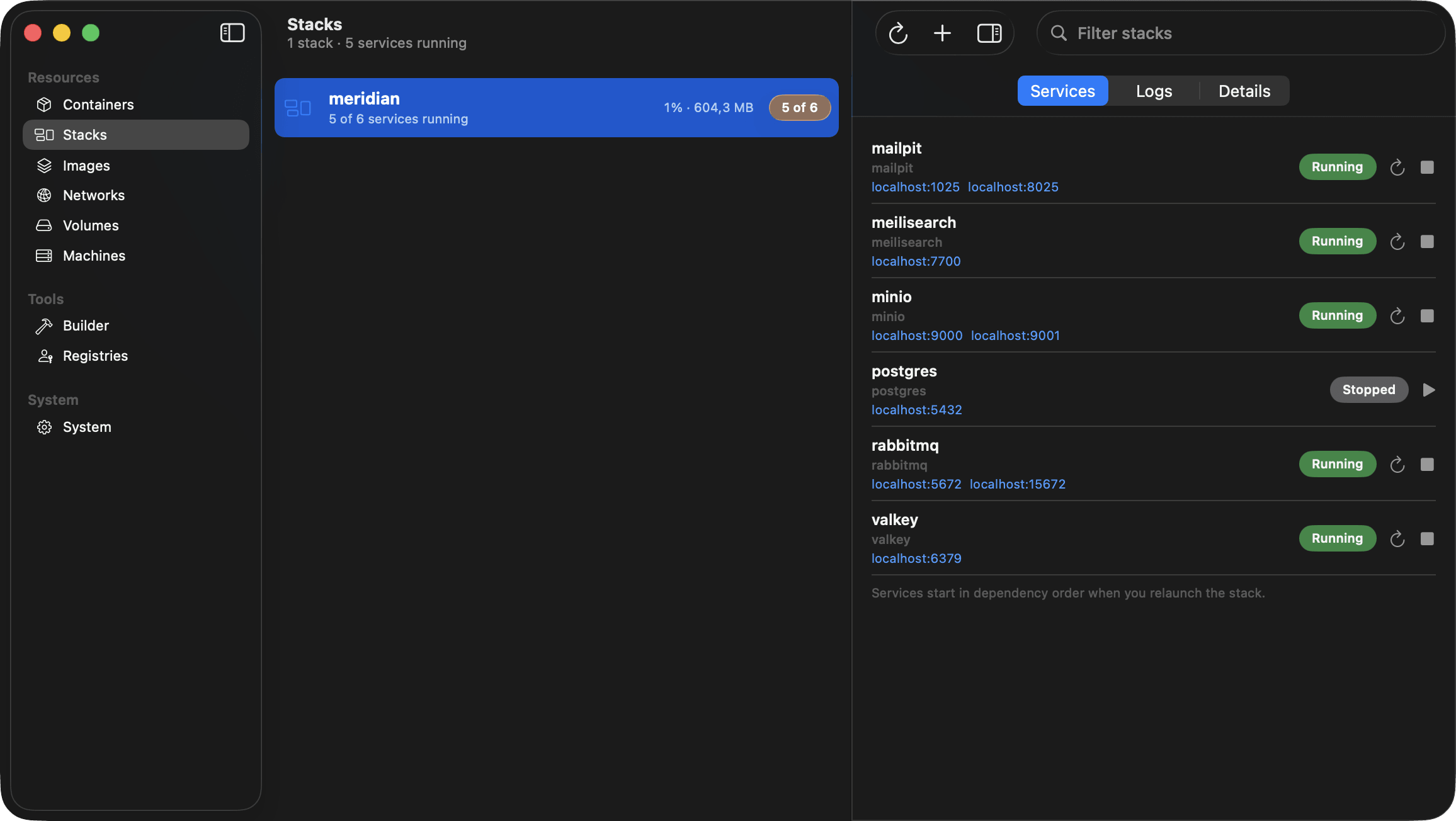
Stacks that feel like one thing
Your compose project is one unit here. Start it, stop it, relaunch it, and watch every service's logs stream together in color.
Native, and it shows
Real SwiftUI, Liquid Glass, and the keyboard shortcuts you expect. It opens fast, sips memory, and feels like it shipped with your Mac.
Always one glance away
Live CPU and memory on every container, totals per project, and a menu bar that can stop a whole stack while your main window stays closed.
How it works
Up and running in three steps
From an empty Mac to a running stack, usually in under five minutes.
Install in a minute
Download the DMG, drag it to Applications, and open it. If Apple's container runtime is missing, the app installs the official signed release for you after one admin prompt.
Bring your containers
Coming from Docker? Click Migrate and pick what moves: images, settings, and volume data come along. Starting fresh? Launch a compose file or run a single image.
Manage it like a Mac app
Stacks, live logs, stats, and a menu bar that keeps working with the window closed. Keyboard shortcuts everywhere, and errors that offer the fix instead of an apology.
Run your whole app as one unit.
You do not think in five containers. You think in one app. The Stacks area works the same way: every Compose project appears as a single thing with live status, resource use, and controls for the whole stack or any single service. The combined log view streams every service together, each line colored by where it came from, searchable, filterable, and ready to pop out into its own window. No other app does this for Apple's runtime.
- Combined live logs with per service colors and search
- Start, stop, and restart the stack or one service
- Relaunch any time from the remembered compose file
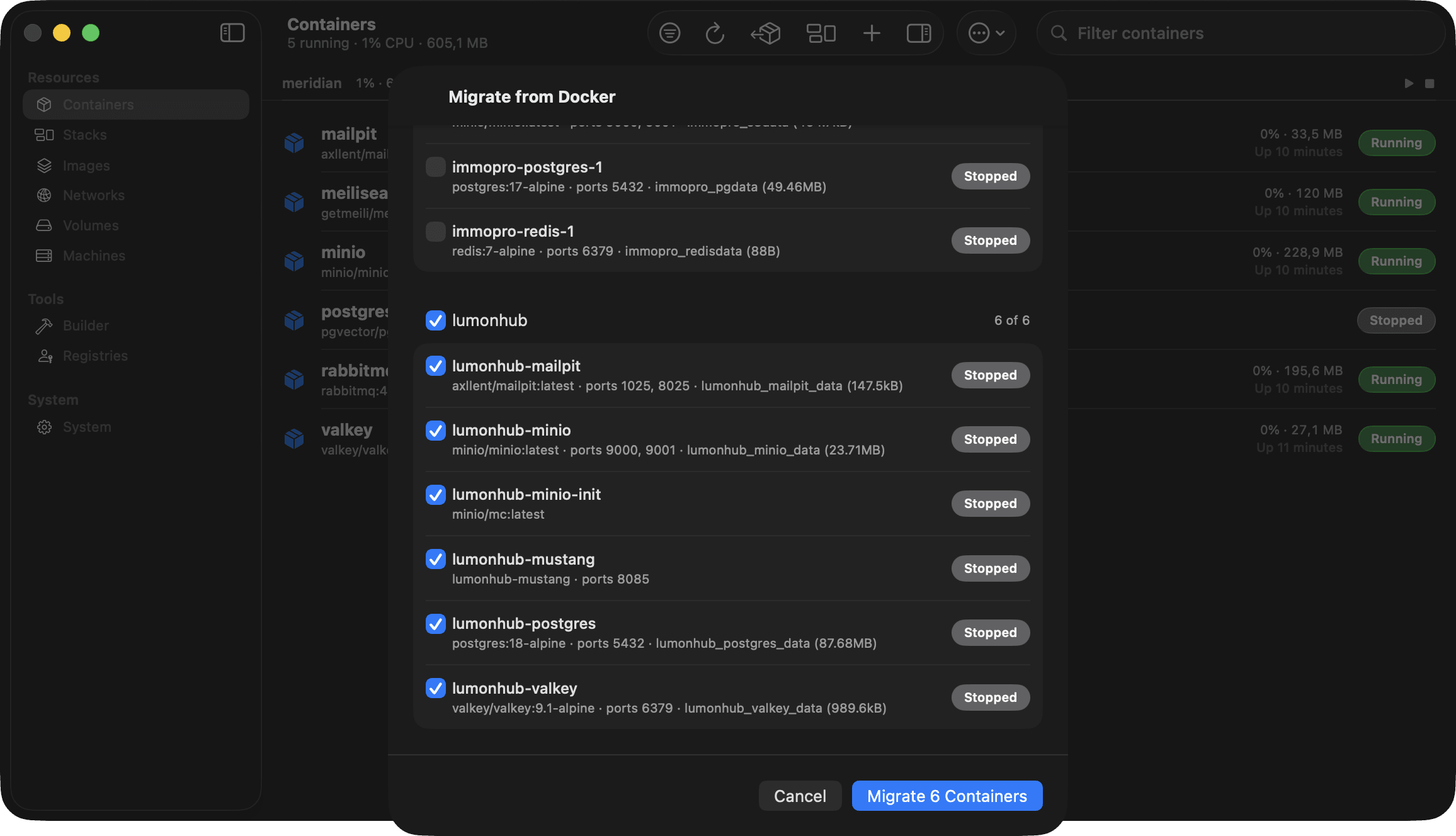
Switch from Docker without losing a thing.
The scary part of switching runtimes is your data. Container Desktop handles it: pick the containers you want, and it brings the images, the configuration, and the actual contents of your named volumes across. Compose projects stay grouped. Every original stays in Docker, stopped as a fallback, and is only ever stopped after its replacement is confirmed running. There is nothing to lose by trying.
- Volume data really moves, checked end to end
- Compose groups and labels carry over
- Originals are stopped, never deleted
No accounts. No tracking. No license fees. Just your containers, running the way Apple intended.
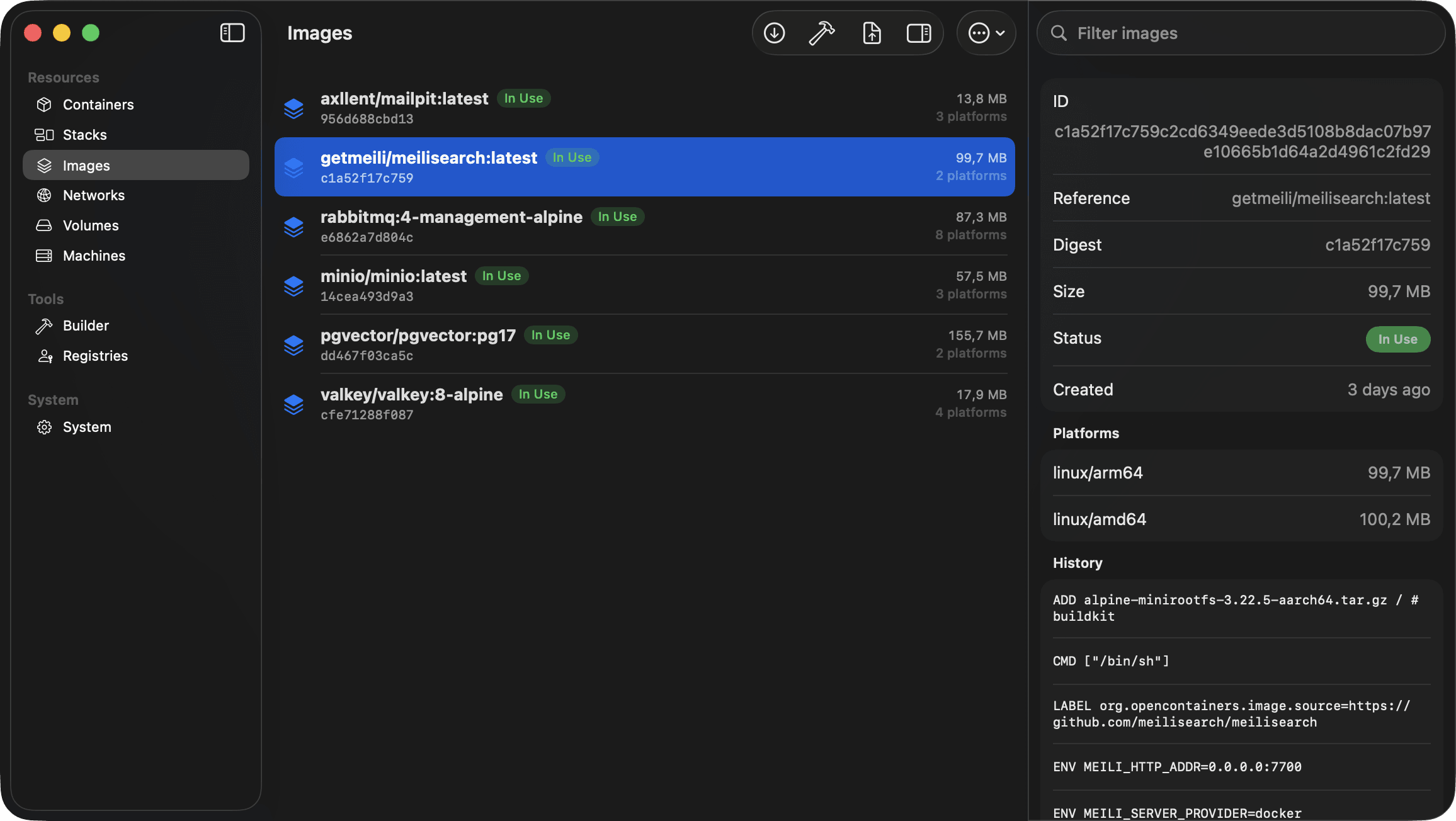
Images, from pull to push.
Pull by reference, build straight from a Dockerfile with the output streaming live, tag, push to any registry you are signed into, and import or export as tar archives. Every image shows its real size, its build history, and whether a container is actually using it, so pruning is a decision instead of a gamble.
- Build from a Dockerfile with live output
- Push and pull private images with saved logins
- See what is in use before you prune
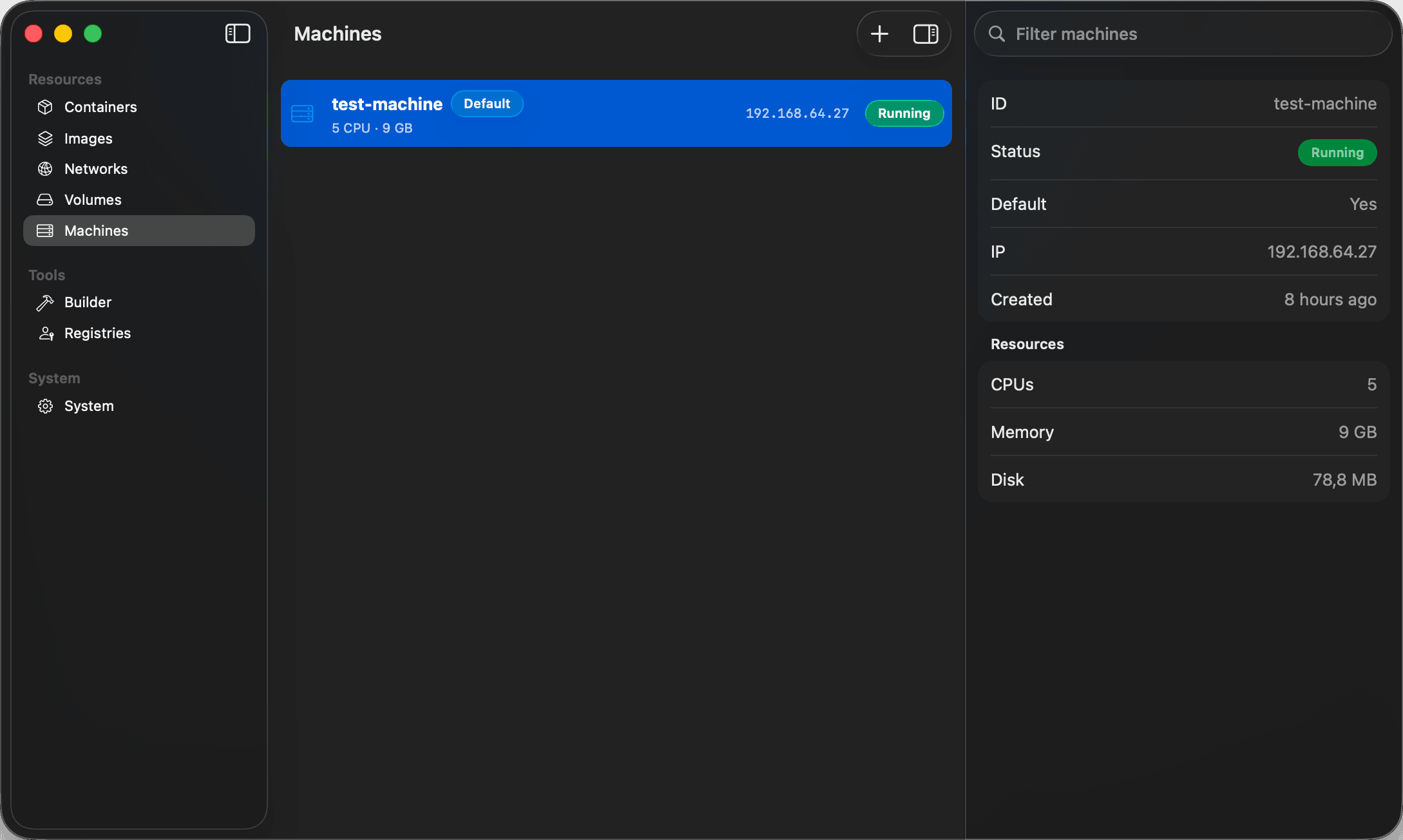
The Linux VMs, without the mystery.
Your containers run inside lightweight Linux virtual machines. Container Desktop puts them on screen: create one with the CPU, memory, and image you want, set a default, resize it later, and drop straight into a shell when you need to poke around.
- Create VMs with exactly the resources you want
- Set the default machine in one click
- Open an interactive shell right from the list
From zero to running in one sitting.
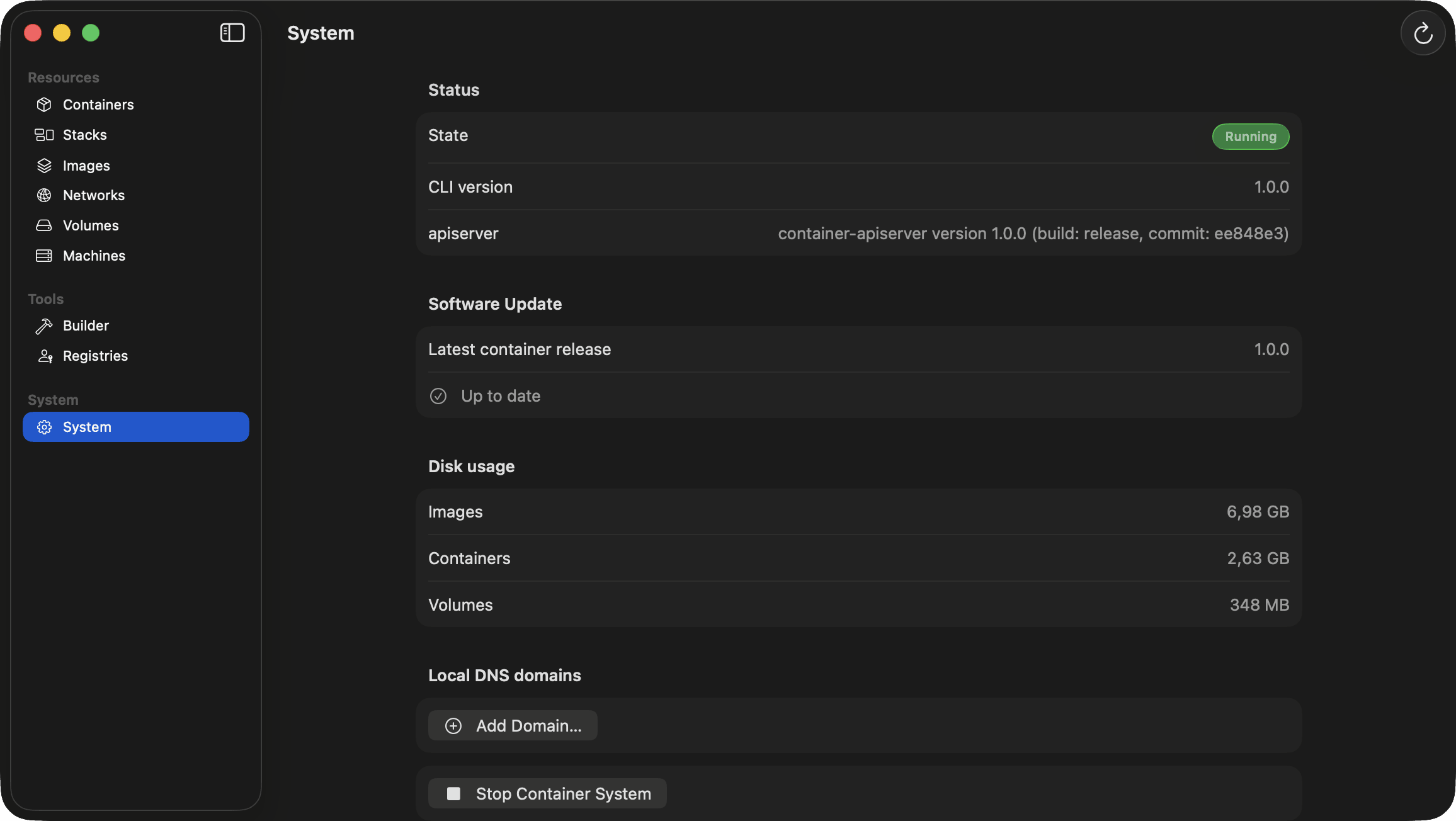
No runtime installed yet? Container Desktop downloads Apple's official release, verifies the signature, and installs it for you. After that it keeps both itself and the runtime current: updates download in the background, get checked against the developer's signature, and wait politely for you to click Restart to Update.
- Guided, verified install of the container CLI
- Background app updates with one click to apply
- Local DNS domains for container hostnames
Everything else, in one place.
Networks, volumes, registries, and the builder. Each one a first-class part of the app.
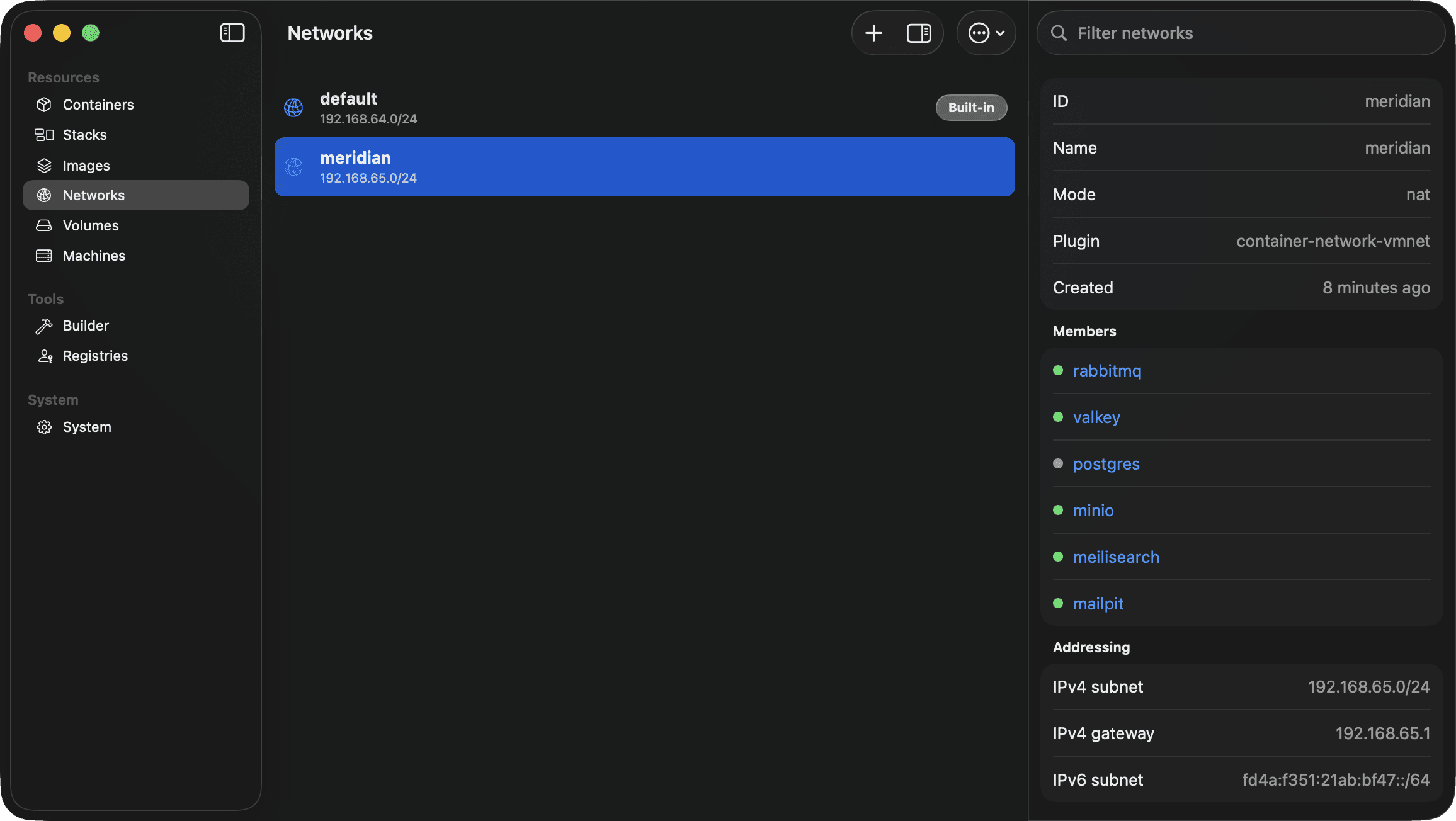
Networks
Give related containers their own network so they find each other by name. The built in one stays protected.
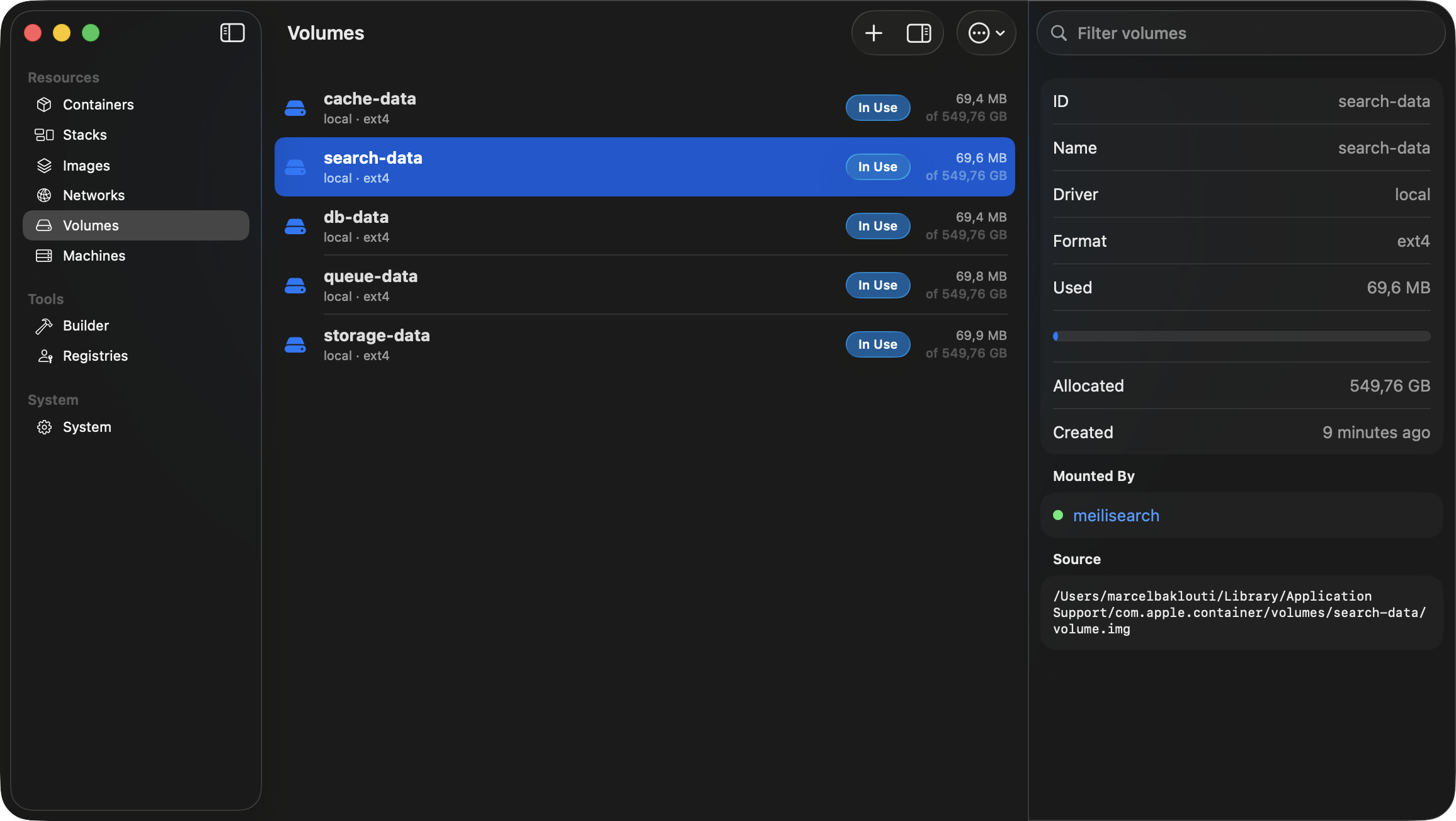
Volumes
See the real disk usage of every volume and exactly which containers mount it, one click away.
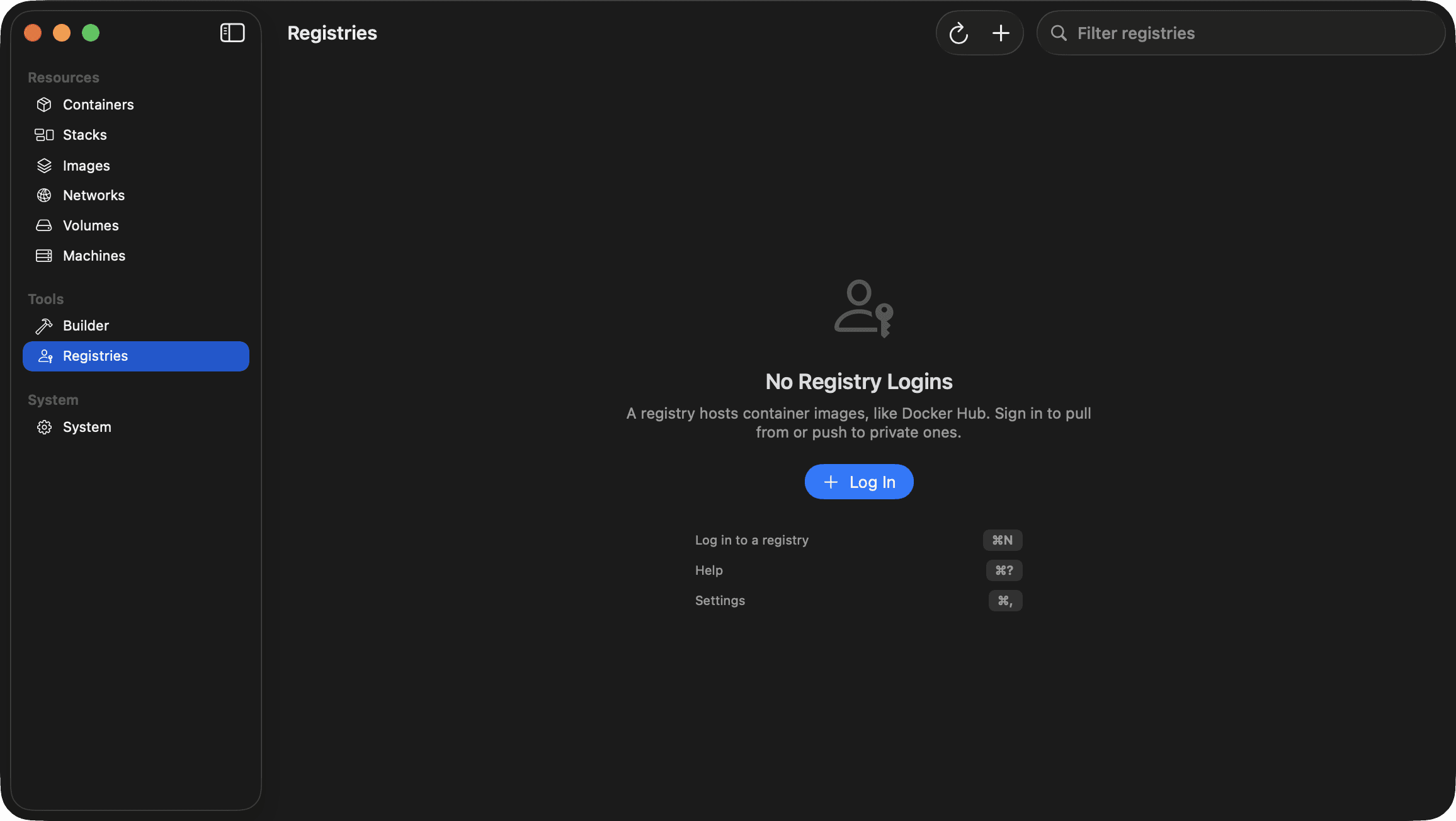
Registries
Sign in once to pull and push private images. Your password goes to the keychain, never the command line.
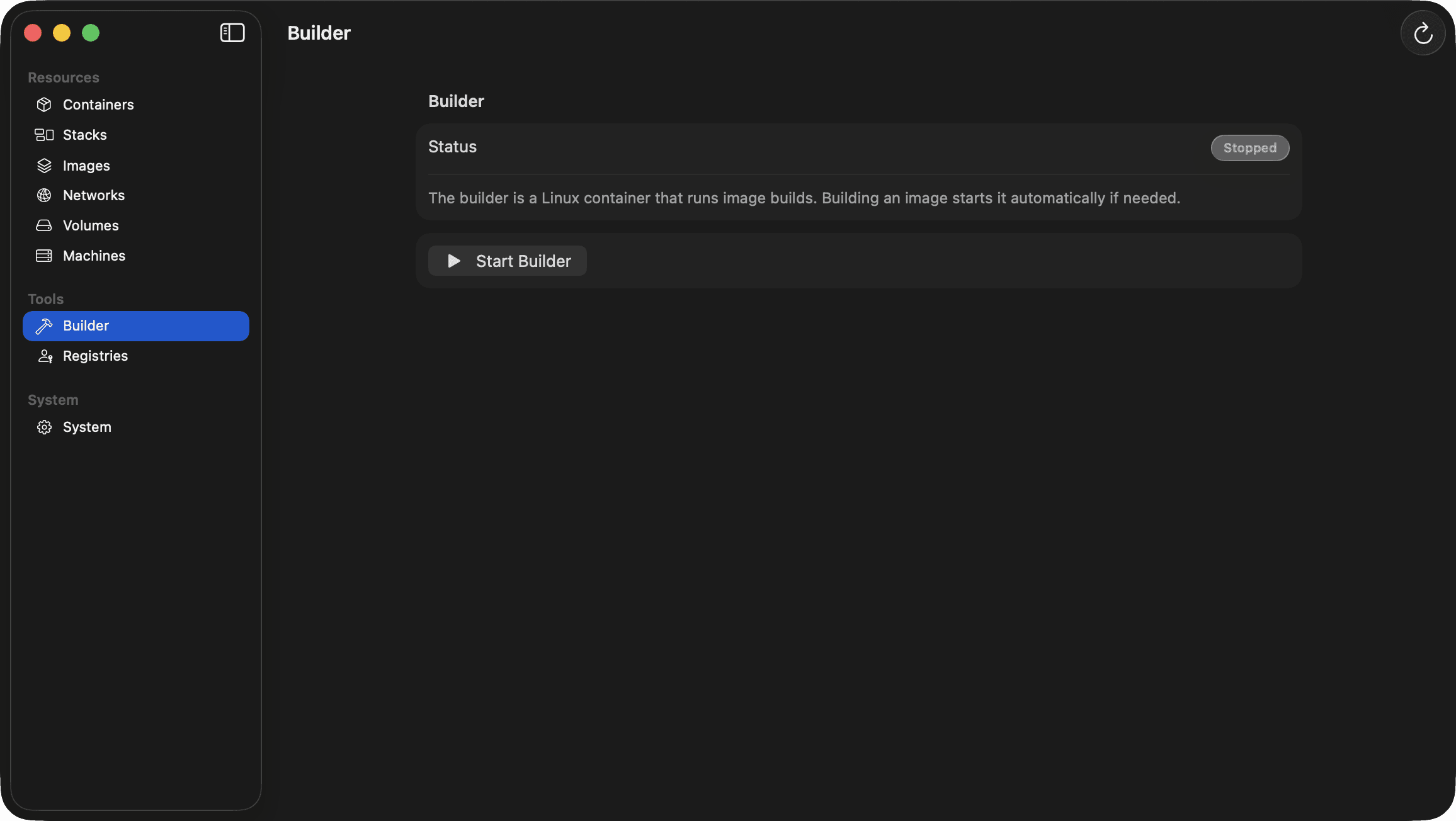
Builder
The build service starts itself when a build needs it. Watch it, stop it, or forget it exists.
Compare
Why not just use the terminal?
You still can, any time. Every action in Container Desktop maps to a container command, so the app and your terminal always agree. Here is what the app adds, honestly.
| Capability | The container CLI | Docker Desktop | Container Desktop |
|---|---|---|---|
| Built for Apple's container runtime | |||
| Native Mac app, no Electron | · | ||
| Compose stacks on Apple's runtime | |||
| One click migration from Docker, data included | |||
| Visual logs, stats, and inspectors | |||
| Free for commercial use at any company size |
Docker Desktop is excellent software for the Docker engine. Container Desktop exists for people who want Apple's runtime with the same comfort.
What you can do
A quick tour of everything Container Desktop manages, straight from the guides that ship inside the app.
Getting started
Install the runtime, start the system, and run your first container.
Migrate from Docker
Move containers over in one click: images, settings, and volume data.
Containers
Run, inspect, duplicate, copy as a command; searchable logs, stats, shell, ports.
Stacks
Manage Compose projects as one unit with combined logs and per service controls.
Networks & volumes
Isolate containers, store data that outlives them, and see what uses what.
Machines
Manage the Linux VMs, set a default, and open an interactive shell.
DNS & hostnames
Create local DNS domains and reach containers at name.domain.
Menu bar & notifications
Quick actions per stack and container; alerts when something exits.
Updates
The app updates itself in the background. One click to restart and apply.
FAQ
Questions, answered
The things people ask before they hit Download.
What is Container Desktop?
Container Desktop is a free, open source Mac app that gives Apple's container runtime a full graphical interface. You get containers, images, volumes, networks, virtual machines, Compose stacks with combined live logs, and a one click migration from Docker, all in a native SwiftUI app.
Is Container Desktop really free?
Yes. It is open source under the Apache 2.0 license, free for personal and commercial use at any company size, with no accounts, no subscriptions, and no feature gates. The code is public on GitHub.
Can I run my docker-compose.yml on Apple's container runtime?
Yes. Open your compose file with Launch Stack and Container Desktop creates the volumes and network, builds services that declare build sections, and starts everything in dependency order. Variable interpolation and .env files work the way you expect, and the whole stack then appears as one unit in the Stacks area.
How does the Docker migration work?
Pick the containers you want to move and Container Desktop does the rest: images transfer directly, named volumes are recreated and their data is copied over, and each container is rebuilt with its ports, environment, mounts, and labels. Your Docker originals are stopped only after their replacement is running, and they are never deleted, so you can switch back at any point.
How is this different from Docker Desktop or OrbStack?
Docker Desktop and OrbStack run the Docker engine. Container Desktop is built for Apple's own container runtime, the one Apple ships for macOS. If you want to use Apple's runtime with the comfort of a real app, this is the tool. It is also fully native SwiftUI rather than a web view, and free regardless of company size.
What do I need to run it?
A Mac with Apple Silicon running macOS 26 Tahoe or later. You do not need to install anything else first: if Apple's container CLI is missing, the app offers to install the official signed release for you.
Is Container Desktop made by Apple?
No. Container Desktop is an independent open source project and is not affiliated with, endorsed by, or sponsored by Apple. It builds on the container runtime that Apple publishes as open source.
Is it safe to install?
The app is signed with a registered Apple Developer ID and notarized by Apple, so Gatekeeper verifies every download. Updates are checked against the same signature before they install, the runtime installer only accepts packages signed by Apple, and the entire source code is public if you want to see for yourself.
Give your containers a better home.
One small download, no account, and your first stack can be running in minutes. If it is not for you, your containers never even notice.
Apple Silicon · macOS 26 Tahoe or later · The DMG is hosted on GitHub Releases with its SHA-256 checksum in the notes.
Not affiliated with Apple Inc.